⊞ JSON Grid X — Features & Usage
At a Glance
An online JSON parser, table viewer, and editor in a multi-cell workspace. Paste or drop data into any cell, pretty-print it into a navigable grid table, then search, expand, edit values inline, and compare or diff values across cells. Apex debug output is auto-converted to JSON, and every tab and cell is saved locally so your workspace persists.
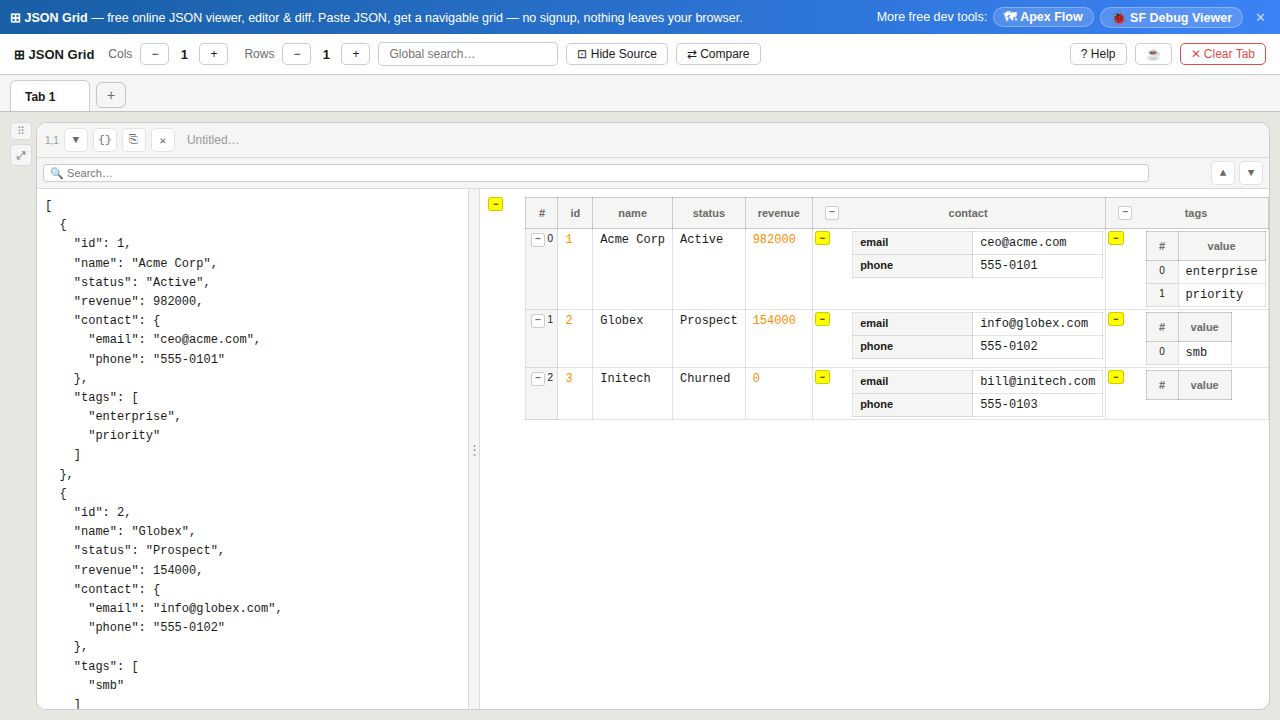
Tip: use the ▶ Load sample button in the toolbar to see the grid in action instantly.
📷 Example screenshot — sample JSON rendered as a grid
👁 Visitors: … · ☕ Buy me a coffee
1. Paste / drop JSON into a cell →
2. Click {} to pretty-print →
3. Navigate, search & double-click to edit →
4. Select two values → Compare
Grid & Tabs
Cols / RowsUse + / − in the toolbar to set columns (1–5) and rows (1–8)
+ tabCreate a new independent workspace tab with its own grid
Dbl-clickDouble-click a tab name to rename it inline
✕ tabClose a tab (requires at least 2 tabs open)
Cell Controls
{}Toggle pretty-print: formats JSON and renders a navigable table; click again to return to the raw editor
⎘ copyCopy the full cell JSON to clipboard
✕ clearWipe the cell's content and title
TitleClick the title field to label the cell
🔍 searchPer-cell search: highlights matches in both the source panel and rendered grid; use ▲▼ to navigate hits
Row Controls (left sidebar)
⠿ dragDrag a row up or down to reorder it
⤢ / ⤡Maximize or restore the row to fill the viewport
▼ / ▶Collapse or expand the row (also available on each cell bar)
🗑 deleteRemove the row; at least one row is always kept
⋯ resizeDrag the row divider to adjust relative row heights
Data Input
PastePaste JSON into the editor — valid JSON is auto-formatted and rendered
Drop fileDrag a .json file onto any cell to load it directly
Apex objPaste Apex debug output like TypeName:[field=value, …] — auto-converted to JSON
Multi-JSONIf multiple JSON objects are detected in a paste, a chooser lets you pick one
⋮ dividerDrag the vertical divider to resize the source panel vs. the grid
JSON Navigation & Copy
HoverHover a grid cell or source token — the matching element highlights in both panels
+N / −Click the yellow badge to expand an array/object; − to collapse
col +/−Toggle button in the table header expands or collapses all values in that column
⎘ nodeHover any nested node to reveal its copy button and copy that value as JSON
Right-click✎ Edit (rename key / change value) · ↩ Wrap text in cell (wrap a long value onto multiple lines) · ⎘ Copy node JSON · ⊞ Convert string to JSON table · ↵ Convert Encode · ⇄ Compare selected nodes
Editing (Bi-Directional Sync)
Dbl-clickDouble-click any scalar value in the grid to edit it inline — changes write back to the source JSON instantly
EnterCommit the inline edit; strings stay as strings, numerics / true / false / null are auto-typed
EscapeCancel the inline edit with no change
Right-click ✎Edit modal: rename the key and/or change the value; use Ctrl+Enter to apply
Compare & Diff
SelectClick any value in the rendered grid to select it (orange outline); select two values
⇄ CompareClick Compare in the toolbar (or right-click → Compare) to open the side-by-side diff
ColorsGreen = added · Red = removed · Purple = changed · Grey = unchanged
Search & History
GlobalThe toolbar search box filters all open cells simultaneously
SnippetsCell content is auto-saved to localStorage; focus the editor and click the dropdown to reload a past entry
⊡ Hide SrcToggle "Hide Source" to hide all raw editor panels and maximize grid space
Apex Debug Parsing
DirectPaste an Apex object like TypeName:[field=val, …] then click {} to convert
Log linePaste a full Apex debug log line — the parser extracts the structured object automatically
Right-clickSelect a string value in the grid → "Convert string to JSON table" to parse inline